
Download Screenshot Helper – Free Mac Screen Capture Tool
Overview
Screenshot Helper is a lightweight, free screen‑capture utility designed exclusively for macOS. First introduced in 2007, the app has earned a modest but loyal following, with over 900 downloads recorded since its debut. Its primary mission is simple: let users take clean, high‑quality screenshots without the bloat of larger design suites.
The current version, 1.2, was last updated on March 23 2007, which means the program runs on older Mac OS X releases as well as more recent macOS builds. The interface follows the classic Mac aesthetic—minimalist icons, a single menu bar, and a straightforward preferences pane—so even newcomers can start snapping within seconds. Because the software belongs to the “Design & Photography” category under the “Screen Capture” subcategory, it is positioned alongside more feature‑rich competitors like Snagit and Monosnap.
However, Screenshot Helper distinguishes itself by staying true to a core set of functions: instant screen grabs, basic annotation, and an ultra‑small installation footprint that won’t clutter your hard drive. The program is distributed in English, free of charge, and does not require an internet connection after download, making it an attractive option for users who prefer offline, privacy‑focused tools. Whether you are a graphic designer needing quick reference images, a developer documenting UI changes, or a teacher creating visual tutorials, Screenshot Helper provides a reliable, no‑frills solution that prioritises speed and simplicity over elaborate editing features.
Key Features & Benefits
- One‑click full‑screen capture with optional selection box.
- Simple annotation tools: arrows, rectangles, text labels, and blur.
- Native support for macOS image formats (PNG, JPEG, TIFF).
- Drag‑and‑drop saving to the desktop, Finder folder, or clipboard.
- Automatic naming convention based on date and time.
- Low memory usage – the installer is under 5 MB.
- No registration, ads, or hidden fees.
Pros
- Extremely lightweight – leaves plenty of RAM for other tasks.
- Free and fully functional without trial limitations.
- Runs on older Mac OS X versions, extending usability for legacy machines.
- Intuitive UI that reduces the learning curve for beginners.
- Secure offline operation – no data is sent to external servers.
- Fast startup and instant capture, ideal for time‑critical workflows.
Installation, Usage & Compatibility
How to Install
Downloading Screenshot Helper is as simple as clicking the “Download” button on the official page. The file arrives as a compressed .dmg bundle. Open the disk image, drag the Screenshot Helper icon into your /Applications folder, and eject the virtual drive.
Because the installer does not require administrative privileges, it can be set up on shared computers or user accounts with limited rights. After installation, launch the app from the Applications folder or use Spotlight search. The first run will prompt you to grant screen‑recording permissions – a macOS security requirement.
Simply navigate to System Preferences → Security & Privacy → Privacy → Screen Recording and check the box next to Screenshot Helper. Once approved, the program is ready for immediate use.
Getting Started with the App
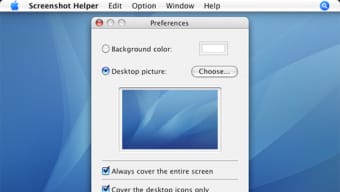
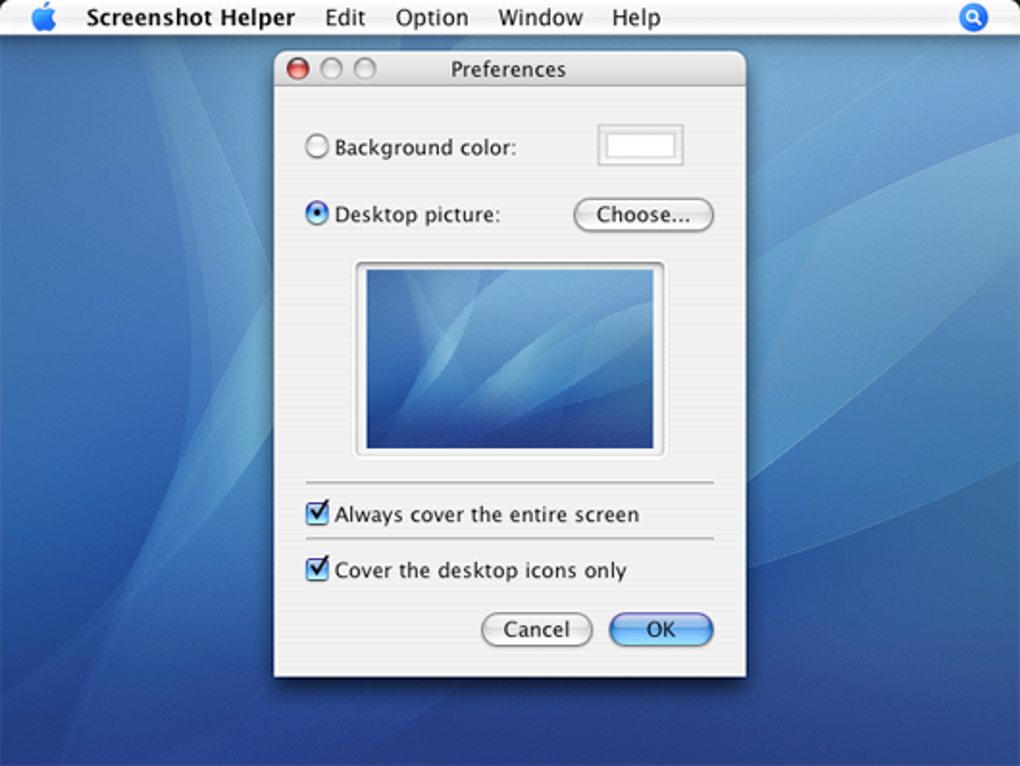
The main window presents three primary buttons: Full Screen, Selection, and Preferences. Clicking Full Screen captures the entire display instantly, while Selection lets you draw a rectangle around the area you need. After a screenshot is taken, a lightweight editor slides in, offering the annotation tools listed in the feature section. Add arrows, highlight sections, or blur sensitive information, then click Save to store the image or Copy to place it on the clipboard for immediate pasting into documents or emails. The Preferences pane lets you customize default save locations, file formats, and naming patterns, ensuring the tool adapts to personal workflows without clutter.
Compatible Operating Systems: macOS (Mac OS X 10.4 Tiger and later). The program runs natively on Intel‑based Macs and is fully functional on Apple Silicon machines through Rosetta 2 translation, preserving the same lightweight performance.
FAQ, Cons & Final Verdict
Cons
- No built‑in cloud sharing – screenshots must be uploaded manually.
- Limited editing capabilities compared with premium tools like Snagit.
- Last official update was in 2007, so some modern macOS quirks may not be addressed.
- Absence of keyboard shortcuts for custom actions.
- No multi‑monitor capture support beyond the primary display.
Frequently Asked Questions
Is Screenshot Helper completely free?
Yes, Screenshot Helper is offered at no cost. There are no hidden fees, trial periods, or in‑app purchases.
Can I capture screenshots on multiple monitors?
The current version only captures the primary display. If you need multi‑monitor support, you may need a more advanced tool.
What image formats does Screenshot Helper export?
It supports PNG, JPEG, and TIFF, giving you flexibility for web use, printing, or archival.
Do I need an internet connection to use the app?
No. After the initial download, Screenshot Helper works entirely offline, making it suitable for secure environments.
Is the software compatible with the latest macOS releases?
While the app was last updated in 2007, it runs on modern macOS versions through Rosetta 2 on Apple Silicon and native Intel support, though some UI elements may appear dated.
Conclusion & Call to Action
Screenshot Helper remains a solid choice for macOS users who value speed, simplicity, and a zero‑cost solution for everyday screen capture needs. Its tiny footprint and offline‑first design make it especially appealing for professionals who work on older hardware or in secure, network‑restricted environments. Although the feature set is modest compared with paid alternatives, the core functionality—clean captures, basic annotation, and instant saving—covers the majority of routine tasks without unnecessary complexity. If you’re looking for a free, reliable screenshot utility that won’t consume precious disk space, give Screenshot Helper a try today. Click the download button below, install the app in seconds, and start creating crisp screenshots for your projects, tutorials, or bug reports.







